Fix CSV Files Opening in One Column: Delimiters and Quotes
Check separators, quoting and data types before repairing an export or importing it into a spreadsheet.
Keep the original before making changes
Save an untouched copy of the export and work with a separate repaired file. Note the system that produced it and the system that must read it. A spreadsheet preview is useful evidence, but one visible column does not prove the export is corrupt. The file may use a separator different from the import setting. Work on a small representative sample first so you can distinguish an interpretation problem from damage already present in the original data.
Find the actual field separator
Inspect the header and several records for commas, semicolons or tabs. A file extension alone does not tell you which separator was used. In Excel, the documented text import workflow allows an explicit delimiter selection and a preview of the resulting columns. Try the correct separator before replacing characters. A global comma replacement can alter data inside fields, while a real delimiter conversion parses records and writes them again using the chosen output separator.
Treat quoted commas as data
A value such as London, UK belongs in one field when it is quoted correctly. CSV quoting also represents a literal double quote by doubling it, and permits line breaks inside quoted fields. This means splitting every line on commas is not a reliable repair. Use the delimiter repair tool’s parsed preview and review the columns. If quoting is malformed, investigate the source row rather than deleting all quotation marks and hoping the remaining text will align.
Check rows as well as headings
After choosing a separator, inspect records containing punctuation, blank cells and multiline notes. A header that separates correctly does not prove the rest of the file follows the same shape. Compare the expected column count with the parsed preview and investigate irregular rows. Check a few beginning, middle and ending records against the untouched original. A useful repair preserves the meaning of the values, rather than simply making every row appear to have the same number of cells.
Preserve identifiers as text
Product IDs, postal codes and account references can look numeric while their leading zeroes are meaningful. Spreadsheet type inference may change them. Microsoft documents importing with a text data type to preserve such values. Choose the appropriate type before loading, especially for long identifiers. Changing a damaged value back to a text format cannot recover digits that were already removed. Keep dates and decimal conventions under the same deliberate review instead of relying on an application’s automatic guesses.
| Symptom | First check | Avoid |
|---|---|---|
| One visible column | Actual separator and import delimiter | Replacing every comma |
| A note spreads across columns | Quoted delimiters and doubled quotes | Removing all quotation marks |
| IDs lose leading zeroes | Import identifiers as text | Changing type after digits are lost |
| Rows have different widths | Source rows and parser warning | Padding without investigating |
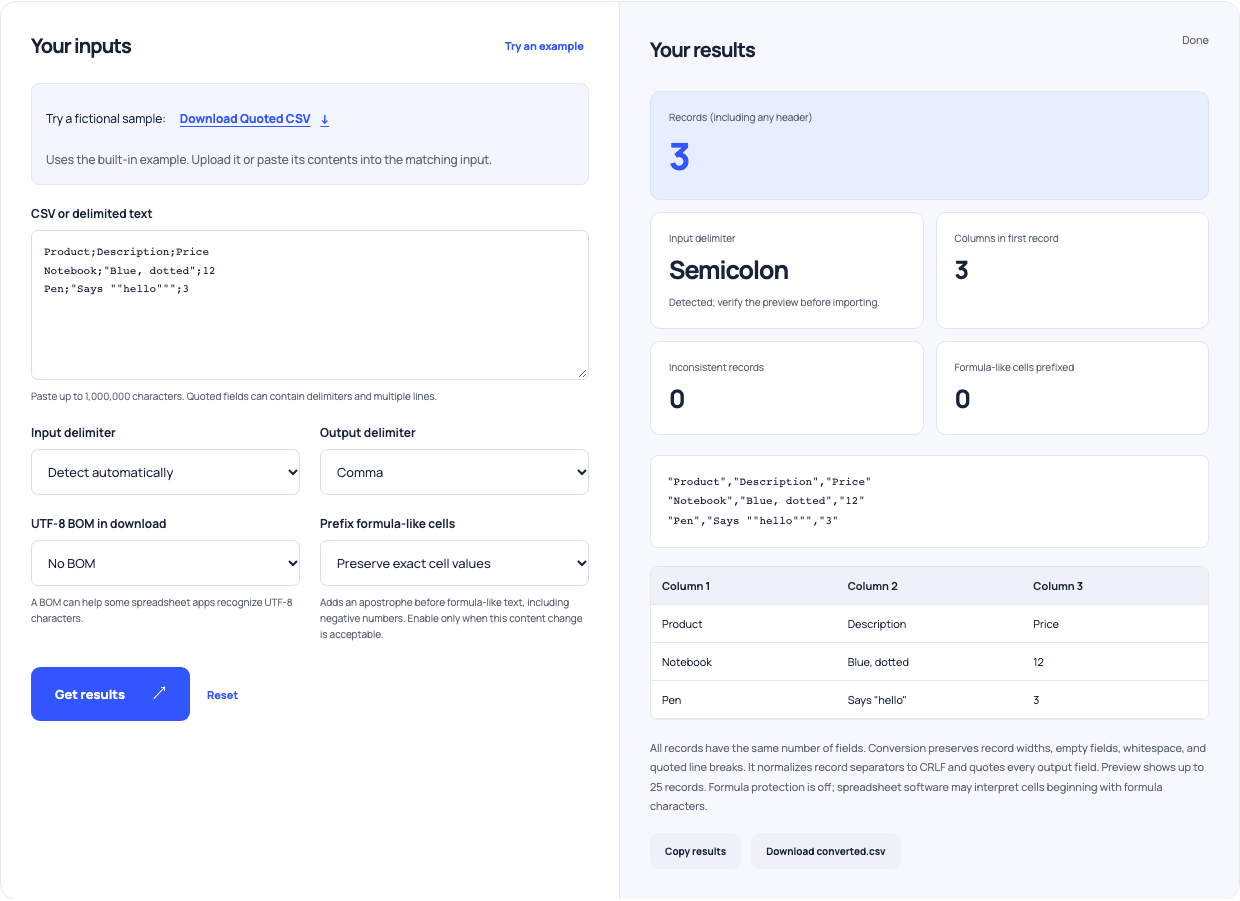
Use this example Opens CSV repair with these inputs.
Review formula-like cells before spreadsheet use
CSV does not carry a spreadsheet type declaration for each value. Spreadsheet software can interpret certain cell prefixes as formulas, which matters when exported content came from other people. OWASP describes this as CSV or formula injection. Use the tool’s formula-safe option for an appropriate spreadsheet-oriented export and inspect what it changes. A protective prefix changes the exported value, so do not silently substitute that file when another system expects an exact original string.
Verify the receiving workflow
Export the repaired sample, import it with the intended delimiter and data types, and compare important values with the original. Record the chosen delimiter, encoding and identifier columns for the next export. If your source is nested JSON, flatten it deliberately with the JSON-to-CSV tool before assessing the resulting table. If you are reconciling records between systems, compare identifier lists separately. Successful parsing establishes structure; it does not verify that the underlying source values are correct.