Convert nested JSON to CSV without losing identifiers or arrays
Choose a row definition, understand nested columns and array cells, then reconcile the export before importing it into a spreadsheet.
Decide what one output row represents
Before converting JSON, name the entity each row should describe: a customer, order, event or another record. Our JSON-to-CSV flattener accepts one object or a top-level array of objects. It does not automatically expand an order’s line-item array into separate rows. If your export nests records under a wrapper property, select the intended array deliberately before pasting it. Save the original JSON and record that selection. A table can be perfectly valid while representing the wrong level of detail for the receiving system, so clarify the row definition first.
Trace nested objects into column names
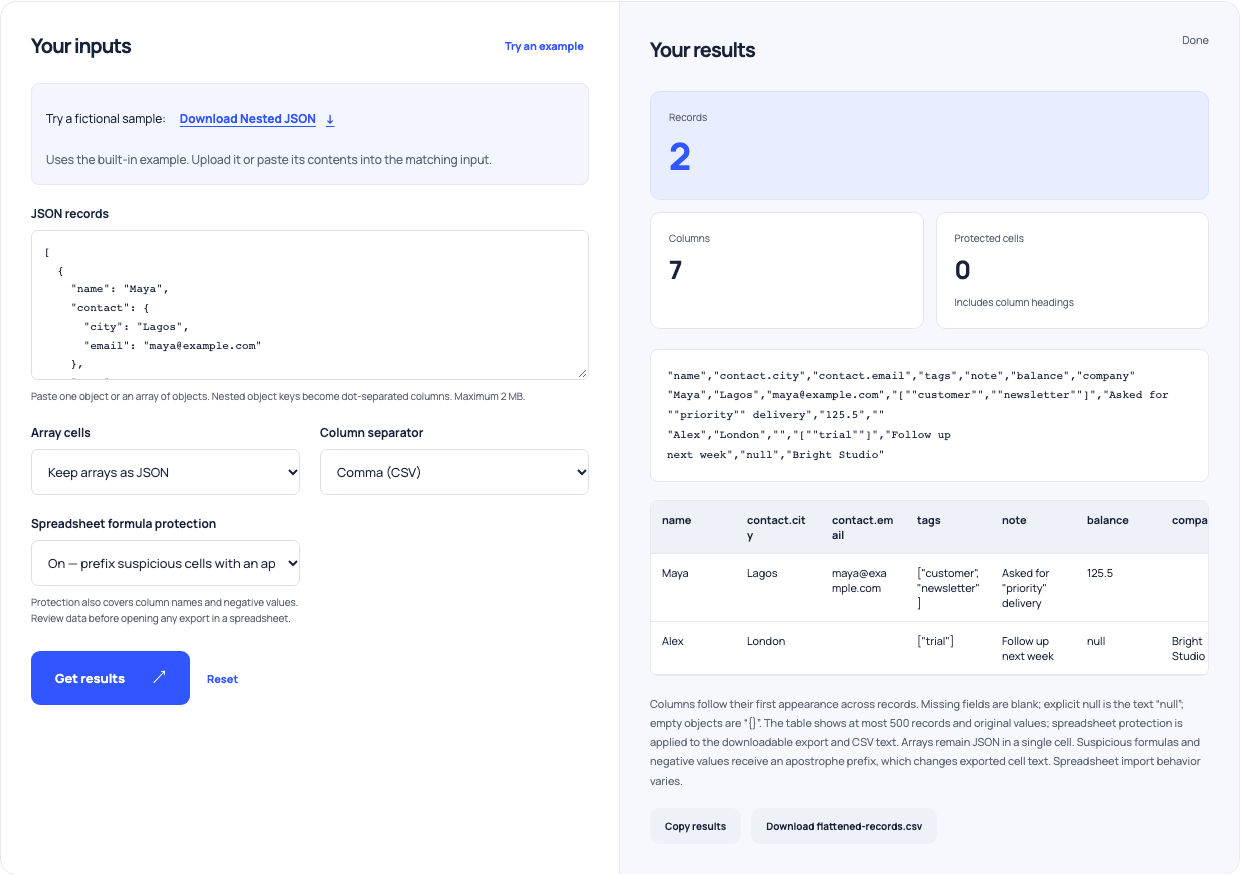
Nested object properties become dot-separated columns. In the built-in demonstration, a contact object produces contact.city and contact.email. Running its two records produces seven columns: name, contact.city, contact.email, tags, note, balance and company. Column order follows first appearance across the records. A field discovered in the second record is still included in the shared table. Review the headings against the receiving system’s expected schema; descriptive source paths are useful for inspection, but a separate destination mapping may be required. Flattening does not decide that mapping for you.
Keep missing fields and explicit null distinct
In the demonstration, Alex has no contact.email property, so that cell is blank. Alex’s balance is explicitly null, so the table contains the text null. Those values are different in the source and remain visibly different in this tool. An empty object is represented as {}. Check how the receiving application interprets each convention before importing. Some destinations expect an empty cell to mean unknown, while others use it to clear a field. The converter cannot infer that business rule. Document your intended treatment instead of silently replacing every blank or null with zero.
Choose an array presentation deliberately
Keeping arrays as JSON places the whole array in one cell, including its brackets and quoted strings. The demonstration’s tags remain a JSON array rather than becoming separate customer rows. Join mode is available for primitive items, using a vertical-bar separator. That display is easier to scan but can be ambiguous if a source string already contains the separator or if empty values matter. Nested arrays and objects are not supported in join mode. Use JSON cells when you need the structure available for later interpretation, and inspect the receiving workflow rather than assuming it can parse those cells.
| JSON value | CSV representation | Choice to preserve |
|---|---|---|
| contact.city | A contact.city column | Avoid literal dotted-key collisions |
| Missing property | Empty cell | Distinguish it from null |
| Explicit null | Text null | Check the import interpretation |
| Array | One serialized or joined cell | No automatic row-per-item expansion |
| Numeric-looking string | String content | Import IDs as text |
Use this example Opens JSON to CSV with these inputs.
Protect identifiers before numbers are parsed
An identifier such as 00123 should be a quoted JSON string when its leading zeroes matter. Large identifiers and exact decimal amounts also need deliberate handling. MDN documents how JSON numeric values can lose precision when parsed into JavaScript numbers. This tool rejects unsafe integer values, but it does not promise arbitrary decimal precision. Quote exact identifiers or amounts in the original export when appropriate. Formatting a damaged number as text after conversion cannot recover the source digits. Keep a known identifier and a representative amount in the sample you verify before processing the full dataset.
Inspect quoting and spreadsheet protection separately
The CSV writer quotes fields and doubles literal quotation marks. A note containing a comma or newline should therefore remain one cell when a compliant reader parses it. RFC 4180 describes common CSV quoting conventions. Spreadsheet formula protection is a separate content transformation: the tool adds an apostrophe to suspicious cells, including negative values and relevant headings. OWASP documents the risk of formula-like text being interpreted by spreadsheet software. Review both the raw preview and protected export. Protection changes the output string, so it may be unsuitable for a system that expects an exact original value.
Convert delimiters with a parser and reconcile IDs
If the destination requires semicolons or tabs, choose that separator directly or use the CSV delimiter converter after flattening. Do not globally replace commas: some belong inside values. For reconciliation, extract the source and destination identifier columns into two one-item-per-line lists and use Compare two lists. Select case sensitivity and whitespace handling consciously. Its sets collapse duplicates, while the audit table retains occurrence counts. A match count alone cannot verify every row’s values or order. Compare a few complete records as well as the identifier sets before treating the import as reconciled.
Handle collisions and verify the receiving import
A literal key named contact.city can collide with the path created by a nested contact object. The flattener rejects ambiguous dot-path collisions instead of choosing one value. Rename conflicting keys or map them explicitly in the source workflow. Start with a small representative sample containing missing values, arrays, quoted notes and important identifiers. Import it using the intended delimiter and column types, then compare it with the original JSON. Once it behaves correctly, record the settings for the full conversion. A successful parse proves the export’s structure is readable; it does not establish that the underlying data is correct.