Email pre-send checklist: preview text, lists, signatures and links
Use a practical pre-send review to catch list duplicates, unclear preview text, signature installation mistakes and inconsistent campaign links.
Separate the checks before you send
An email can have a tidy subject line and still use an outdated recipient list or the wrong destination link. Treat audience selection, message presentation, contact details and campaign tracking as separate review steps. Keep a draft containing the intended audience, the main action and the exact landing page. This makes the review about a real message instead of a collection of attractive previews. The tools below inspect supplied text and URLs; none sends the email or certifies that it will reach an inbox. Finish the workflow in the actual sending platform.
Review the list without inventing consent
Run the email syntax cleaner on a copy of the addresses you intend to inspect. Its demonstration keeps four addresses, removes one duplicate and flags two entries as malformed or unsupported. With the conservative default, Ada@example.com and ada@example.com remain distinct, while the domain is normalized. The tool retains dots and plus tags instead of assuming different aliases are one mailbox. Review the audit before importing a cleaned list. Syntax cleaning cannot prove mailbox existence, permission or subscription status; preserve the sending platform’s suppression and unsubscribe information separately from this text-processing step.
Let the preheader add a useful detail
The subject should establish the reason to open, and the preview text can add the next relevant detail. If the subject announces a project update, the preview might identify the decision that needs attention. Repeating the subject spends limited visible space without helping the reader. Mailchimp explains that clients can draw preview text from the message body when custom text is absent. Check the draft for accidental first-body text such as navigation or a browser-view link. A text preview helps with wording, while the finished message still needs to be tested in the recipient experience.
Use character budgets as an editorial aid
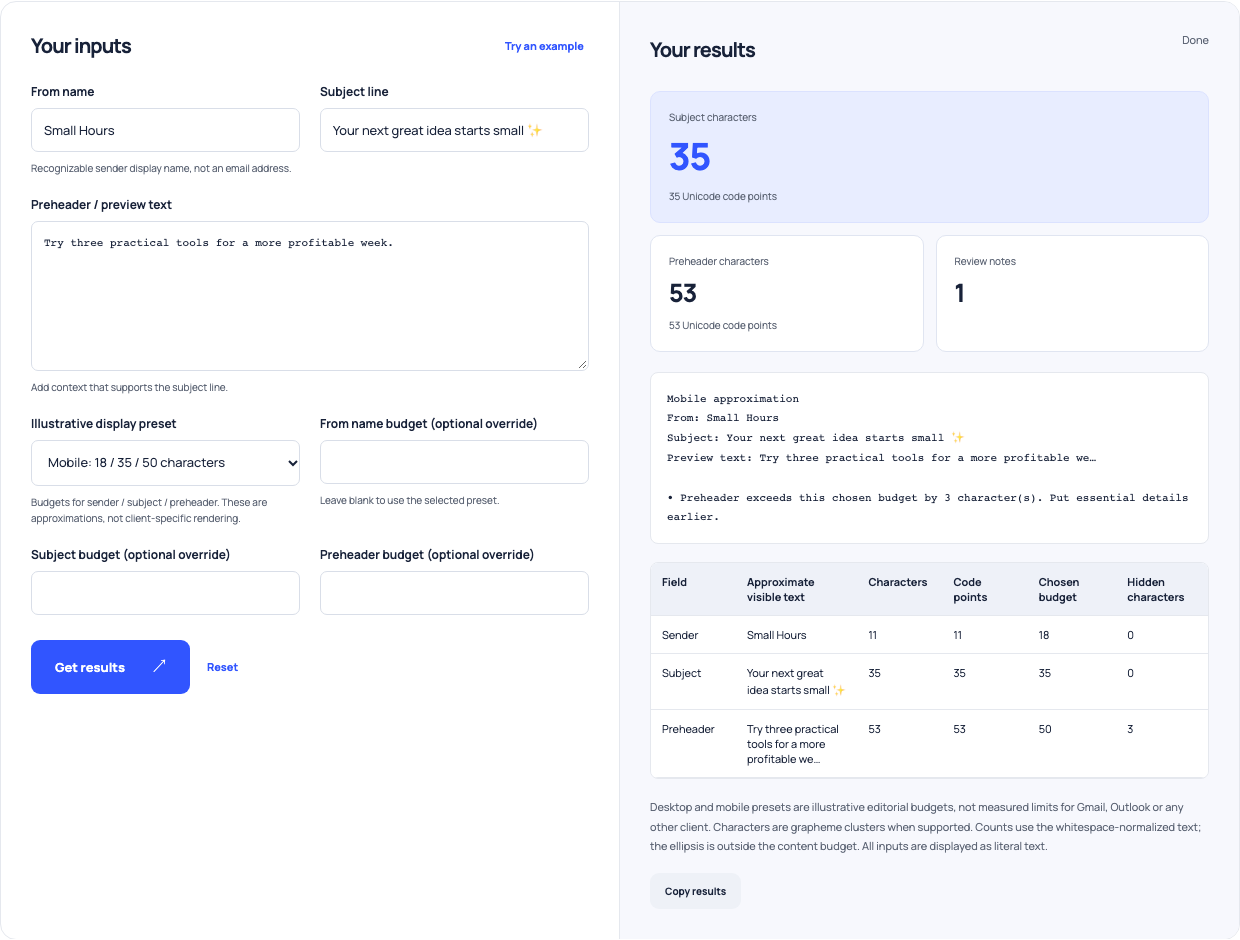
The subject and preheader preview offers illustrative mobile budgets of 18, 35 and 50 characters for sender, subject and preview text. These are chosen budgets, not measured limits for Gmail or Outlook. In the demonstration, the subject has 35 visible characters and the preheader has 53; the tool flags three preheader characters beyond its selected budget. Move an essential detail earlier rather than aiming mechanically for a count. Font widths, layout and client settings affect the real display, and merge tags can change the final wording. Inspect actual test messages after personalization.
| Local check | What it shows | Still verify |
|---|---|---|
| Address cleanup | Syntax issues and duplicate entries | Consent and mailbox existence |
| Subject/preheader preview | Chosen character budgets | Personalized text in real mail clients |
| Signature builder | Generated HTML and plain text | Installed rendering |
| Campaign link checker | Parameter and naming issues | Destination, redirects and collection |
Use this example Opens Subject & preheader with these inputs.
Install the signature in the expected format
Use the signature builder with your actual name and only the contact details you want to publish. Its demonstration generates three contact links and both HTML and plain-text downloads. The on-page table is a plain-text details preview. Copy results copies HTML source, which some editors accept and others display literally. If your editor expects formatted content, open the downloaded HTML, copy the rendered signature and paste it into the appropriate settings. Gmail documents its own signature workflow. Save the change and send a test before assuming the installed signature matches the generated file.
Inspect campaign tags before shortening links
Paste the original campaign URLs into the social campaign link QA checker. Its fictional example reviews all three URLs while classifying none as an invalid URL: review findings include capitalization differences, repeated source parameters and a missing campaign value. A syntactically valid link can still be inconsistent with your naming policy. Google Analytics describes source, medium and campaign parameters and case-sensitive values. Agree on their meanings before changing them. The checker reports potential issues without rewriting links or expanding shortened URLs, so review intentionally different values and any signed URLs before making edits.
Open the real destination and inspect a test
After the local text checks, open each important destination from the finished test email. Confirm that it reaches the intended page, that the page matches the offer and that its next action works on a phone as well as a desktop. The local URL checker does not fetch pages, inspect redirects or validate your analytics installation. Check the subject, preview text, contact links and signature spacing in the email clients relevant to your audience. Include a plain-text view when available. This step tests the delivered artifact rather than treating a generated source file as the final experience.
Make the last review reproducible
Keep the final draft version, reviewed URLs and list-audit decisions together. Check dates, claims and recipient segmentation once more in the sending platform, including its own unsubscribe and sender requirements. Gmail’s sender guidance covers infrastructure and message practices beyond these four tools; passing a text checklist does not replace those requirements. When several people work on a campaign, assign a named owner to the final platform preview and test. Save the checklist with the campaign so a later correction can be traced to what was reviewed. The aim is a clearer, correctly addressed message with working links.