Fit vs Center Crop: Batch Resize and Exact Image Crops
Calculate dimensions, resize a batch and crop exact source regions without stretching.
Start with the source ratio
The aspect-ratio calculator reduces 1920 by 1080 to 16:9. Set a target width of 800 and it gives 800 by 450, with the unconstrained dimension rounded to whole pixels. This is a dimension calculation, not an actual file edit. Record the required output ratio and whether the destination needs exact dimensions before choosing a resize mode. More pixels from enlargement do not create original detail.
Try the containing-box example
The batch resizer’s generated source is 1200 by 800 pixels. With a 600 by 600 box, Fit produces 600 by 400, retaining the full frame. No enlargement is allowed by default. A batch can contain differently proportioned sources, so Fit does not necessarily produce identical output widths and heights. The preview shows the first result; inspect the other numbered downloads separately.
Compare center crop with an exact crop
Center crop fills the same 600 by 600 box by taking a centered 800 by 800 source region and scaling it to 600 by 600. That removes 200 source pixels from each side of the 1200-pixel width. The exact cropper instead takes the rectangle you specify: its example starts at x=100, y=100 and exports 600 by 400 source pixels without stretching. Coordinates use the decoded orientation-adjusted image.
| Choice | Source treatment | Output pixels |
|---|---|---|
| Fit in 600 × 600 | Complete 1200 × 800 frame | 600 × 400 |
| Center crop to 600 × 600 | Centered 800 × 800 region | 600 × 600 |
| Exact crop example | x=100, y=100, width=600, height=400 | 600 × 400 |
| Proportional calculation | 1920 × 1080, chosen width 800 | 800 × 450 |
Crop examples use valid source-pixel coordinates. Enlarging does not add original image detail.
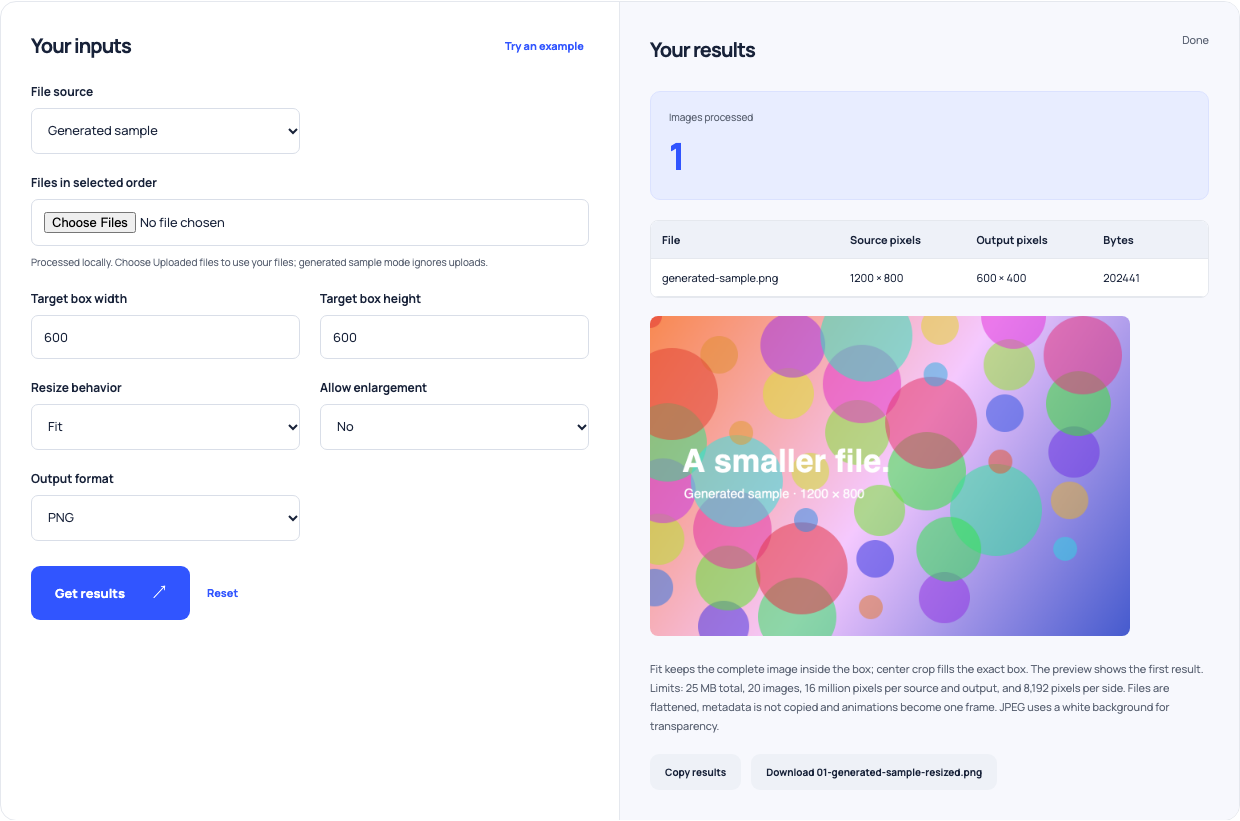
Use this example Opens Batch image resizer with these inputs.
Select format and enlargement deliberately
PNG keeps transparency where supported; JPEG uses a white background; WebP requires a browser encoder that supports it. Exported images are flattened single frames without copied metadata. Center cropping to dimensions larger than the source requires explicit permission to enlarge. Decide whether lost edges, transparency changes or extra sampling fit the intended use before applying the same settings across a whole product-image batch.
Inspect a representative batch before replacing files
Try a landscape image, a portrait image and any image whose subject sits near an edge. Compare the preview and downloaded dimensions with the destination requirements. Keep the untouched originals and avoid overwriting them with a differently cropped version until you have checked the whole batch. A uniform box is a layout decision; it does not establish that every source looks good inside that box.