HEIC and WebP to JPEG: Compatibility and Information Loss
Convert supported still images locally and understand what JPEG cannot preserve.
Identify the destination’s actual restriction
A file rejected by an upload form may have the wrong format, excessive bytes or unsuitable dimensions. Read the stated requirements before converting everything to JPEG. The HEIC and WebP converters address a source-format problem; they do not automatically meet a separate file-size cap. Use the image compressor or resizer afterward if needed, and measure the final download rather than assuming an encoder quality value proves acceptance.
Try a genuine HEIC conversion
The HEIC converter’s generated-sample setting loads a bundled HEIC illustration created from Small Hours’ own artwork. It runs the actual locally bundled decoder and creates a JPEG at the selected quality. It is not a user photograph or a mocked extension change. Uploaded files must be supported HEIC/HEIF still images within the 10 MB and pixel bounds. Some containers and codecs remain unsupported.
Understand what the JPEG copy leaves behind
HEIC depth, HDR information, auxiliary images, Live Photo motion and original metadata are not preserved as those features in the JPEG output. Inspect color and orientation before relying on the copy. The WebP converter similarly exports a still frame and replaces transparent areas with white. Its generated sample demonstrates JPEG encoding from a generated raster; upload a real WebP to test that source-format path.
| Source feature | JPEG output | Check afterward |
|---|---|---|
| HEIC still image | Supported decoded still | Color and orientation |
| HEIC HDR/depth/motion | Not preserved as those features | Keep the original |
| WebP transparency | White background | Edges and intended background |
| Animated source | One still frame | Whether motion was important |
| Encoder quality value | Lossy encoder setting | Actual bytes and visible detail |
No conversion guarantee for every HEIF codec or container.
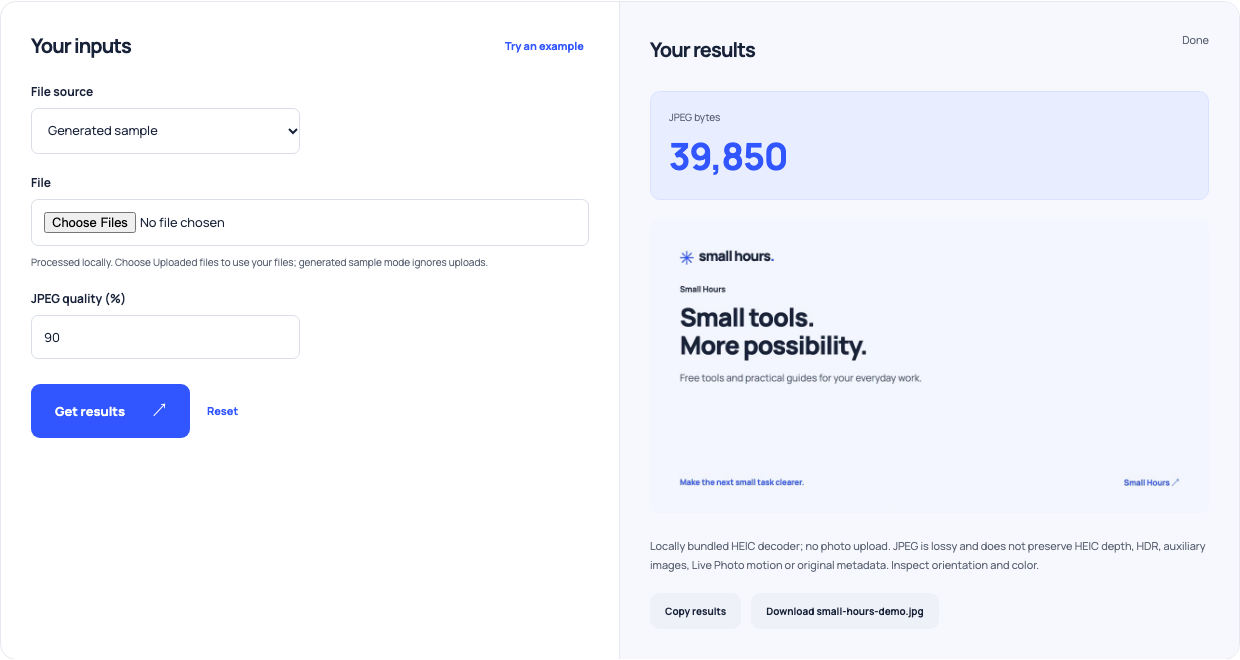
Use this example Opens HEIC to JPG with these inputs.
Treat quality as an encoder setting
The default 90% is an input to the browser or decoder’s JPEG encoder, not a measured visual-quality score. A visually simple image and a detailed photograph can produce different byte sizes at the same setting. Re-encoding a lossy source can add loss. Compare text, edges and small details in the downloaded copy at the intended display size, rather than choosing quality only from the percentage label.
Keep compatible and archival copies separate
Share the compatible output when the destination requires it, but keep the original if its extra information or quality matters. The tools do not upload selected photos. Verify the downloaded file’s actual format and accepted dimensions in the receiving application. If the conversion fails, export a fresh compatible copy from the original photo application instead of renaming the file extension and assuming the contents changed.