Solid Image Redaction vs Blur: A Local Sharing Workflow
Select sensitive rectangles and verify a flattened sharing copy without confusing blur with secure redaction.
Inventory what the image reveals
Before drawing a rectangle, inspect the full image for names, addresses, faces, account details and contextual clues. A screenshot can expose private information in a title bar or background as well as the main content. The tool does not detect sensitive regions automatically. Keep the original private and work on a sharing copy; the local processing step does not decide whether the remaining content is appropriate to disclose.
Reproduce the solid-cover example
The generated image is 1200 by 800. Its rectangle is x=80, y=300, width=900, height=180, entered as 80,300,900,180. Solid black replaces those selected output pixels and the tool exports a flattened PNG. You can enter up to 20 rectangles, one per line. Each rectangle must fit the decoded image. Use the preview to check placement, then inspect the actual downloaded file too.
Understand why blur is different
Blur mixes neighboring pixel information rather than simply replacing the covered area with an unrelated solid color. Recognizable shapes or context can remain. The chosen blur radius is a visual setting, not a secrecy measurement or guarantee. Select solid coverage when the information must not remain recognizable. A stronger blur cannot compensate for a rectangle that misses part of the sensitive text or face.
| Treatment | What changes | Limit |
|---|---|---|
| Solid coverage | Selected output pixels replaced | Only the selected rectangle is covered |
| Blur | Pixel detail is mixed | Shapes may remain recognizable |
| Crop | Outside region omitted from export | Remaining context still needs review |
| Share original | Nothing removed | Private information remains |
Use the flattened reviewed output; no automatic sensitive-information detection is performed.
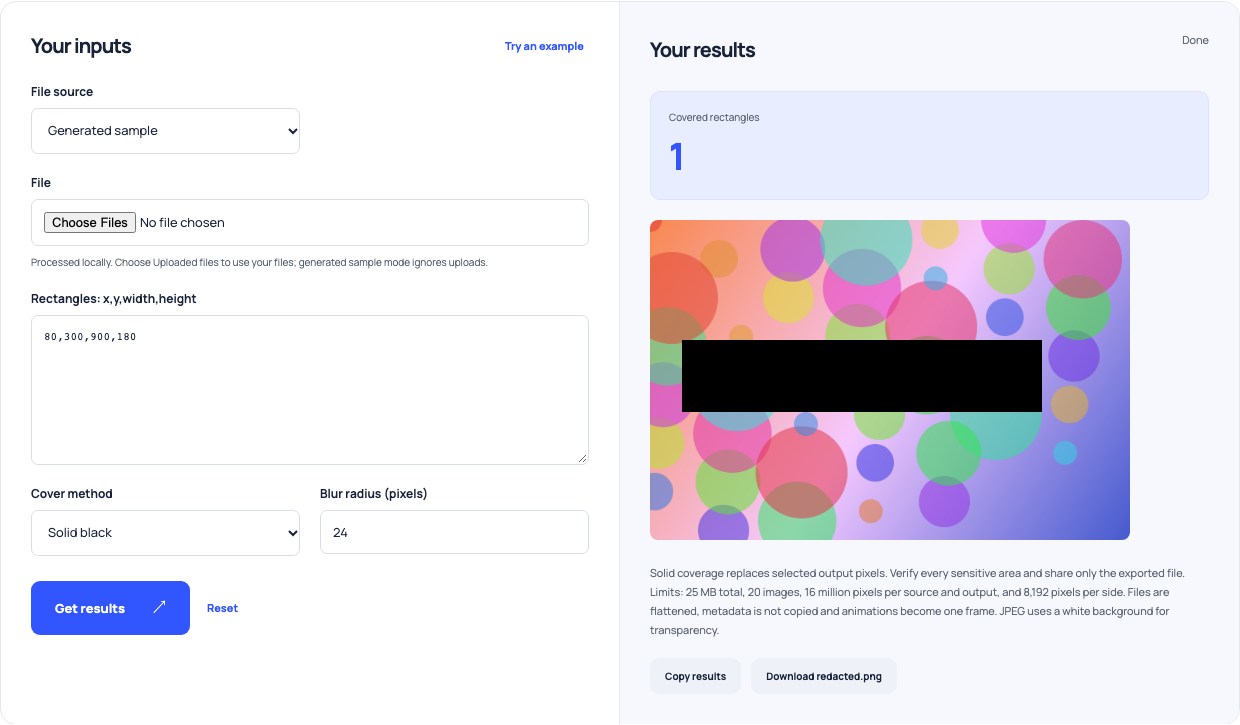
Use this example Opens Manual image blur and redaction with these inputs.
Verify the whole exported copy
Open the exported PNG at a useful zoom and look along every covered edge. Check that no private content remains outside the rectangles. The canvas export does not copy original metadata, but it does retain all unselected visible pixels. Solid coverage protects only the chosen output region. Cropping away an area can be another useful choice when the remaining image still explains the intended point.
Share only the reviewed result
The original file is unchanged and still contains the sensitive information. Do not accidentally attach it alongside the redacted download. Keep a clear name for the reviewed sharing copy and check the attachment preview in the destination before sending or publishing it. The tool creates a local image result; it does not upload the file, send it to anyone or certify a complete privacy review.